

What Causes Faded Prints on Thermal Receipt Printers?
2026-10-15
Faded receipts are a common problem in retail stores, restaurants, supermarkets, warehouses, and other businesses that rely on clear transaction records. When a Thermal Receipt Printer produces pale text, uneven characters, or receipts that are difficult to read, the cause may be the paper, printhead, temperature settings, power supply, or maintenance routine. Replacing equipment immediately is not always necessary. In many cases, a systematic inspection can identify the source of poor print quality and restore consistent output. At Xiamen Peite Electronic Technology Co., Ltd., we consider print density, printing speed, thermal paper compatibility, and operating conditions when evaluating receipt printing performance. Understanding how these factors interact helps businesses reduce downtime, avoid unnecessary replacement costs, and maintain legible receipts throughout daily operations.
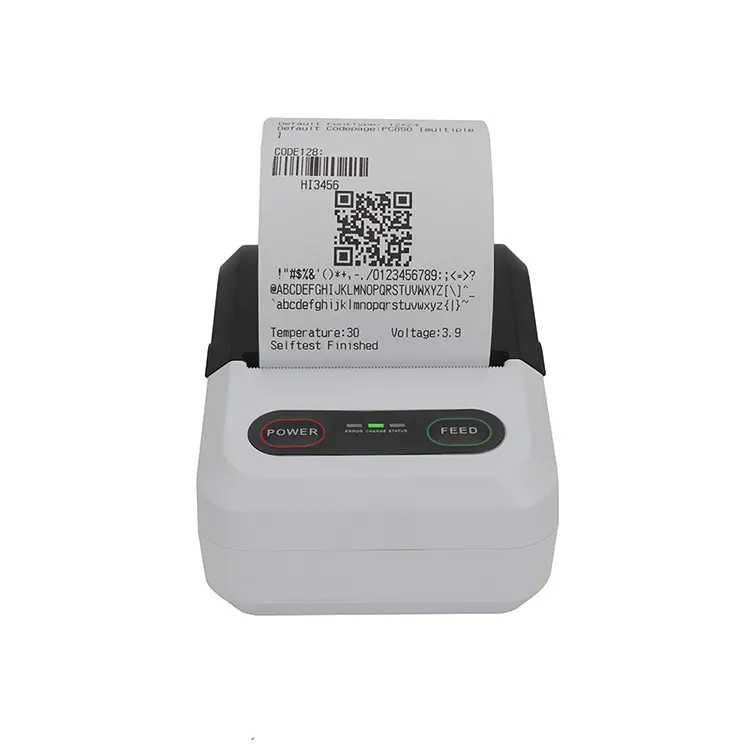
Why Does Thermal Printing Become Pale or Uneven?
Direct thermal printing uses heat to create an image on specially coated thermal paper. The printhead contains small heating elements that activate the coating as the paper passes through the mechanism. Unlike traditional inkjet or laser printing, this process does not require ink cartridges or toner. Print darkness therefore depends on the amount of heat transferred to the paper, the sensitivity of its coating, the speed of paper movement, and the condition of the printhead.
When the printed image becomes too light, one or more parts of this process may be operating outside the intended range. A low energy setting may not activate the paper coating sufficiently. Excessive printing speed may reduce the time available for heat transfer. Dust, adhesive residue, or paper debris on the printhead can interfere with contact, while a worn or damaged heating element may fail to produce a consistent image.
It is important to distinguish uniform fading from localized defects. If the entire receipt is pale, check the paper specification, print density, and power supply first. If a narrow vertical strip is consistently blank, inspect the corresponding printhead area for contamination or damaged heating elements. Horizontal gaps, intermittent darkness, and fading that develops during long print jobs may indicate different problems.
| Print symptom | Possible cause | Recommended inspection |
| Entire receipt is pale | Low print density, unsuitable paper, insufficient heating, or power issues | Check printer settings, paper specifications, and power adapter |
| One vertical area is consistently blank | Dirty or damaged printhead elements | Inspect and clean the printhead according to the manufacturer's instructions |
| Print darkness changes across the receipt | Uneven paper coating, inconsistent contact, or feed mechanism issues | Test a new paper roll and inspect the paper path |
| Print becomes lighter during continuous operation | Thermal management, power limitations, or printhead protection behaviour | Review duty cycle, power requirements, and device diagnostics |
| Receipts fade after storage | Heat, sunlight, chemicals, friction, or unsuitable paper storage | Review paper quality and storage conditions |
Our troubleshooting approach starts with the simplest reversible causes before considering component replacement. Testing a fresh roll of compatible paper, printing a built-in self-test where available, and comparing the results with the original receipt can help separate consumable problems from hardware faults. This sequence also gives service technicians clearer evidence when a repair is necessary.
How Do Thermal Paper Quality and Printer Settings Affect Print Darkness?
Thermal paper is an active part of the printing system, not merely a disposable roll. Its heat-sensitive coating must respond appropriately to the energy delivered by the printhead. Paper with an unsuitable coating, inconsistent thermal sensitivity, excessive surface roughness, or poor manufacturing uniformity can produce weak text even when the printer is operating correctly.
Paper width, roll diameter, core size, and thickness should match the device specifications. These dimensions primarily affect mechanical compatibility and paper handling, while coating sensitivity has a more direct influence on image density. Using the correct roll dimensions does not guarantee good print quality if the thermal coating is unsuitable for the printer's operating characteristics.
Storage conditions matter as well. Excessive heat, direct sunlight, humidity outside the paper supplier's recommended range, and contact with certain chemicals can affect thermal paper before it enters the printer. Old or poorly stored rolls may therefore produce inconsistent results. For business-critical receipts, use paper from a supplier that can provide consistent specifications and suitable storage guidance.
| Product parameter | What buyers should confirm | Why it matters |
| Printing method | Direct thermal printing | Confirms that the device uses heat-sensitive media rather than ink or toner |
| Supported paper width | Exact width in millimetres, according to the model specification | Prevents paper alignment and feed compatibility problems |
| Maximum print width | Specified printable width in millimetres | Defines the available area for text, logos, and barcodes |
| Print resolution | Rated resolution in dots per inch or the manufacturer's specified equivalent | Affects character edges, fine details, and barcode rendering |
| Print speed | Rated maximum speed in millimetres per second | Must be considered alongside thermal paper sensitivity and image density |
| Print density adjustment | Supported density levels or driver settings | Allows suitable adjustment of thermal energy within approved operating limits |
| Power supply | Required voltage, current, and compatible adapter specification | Helps prevent unstable operation caused by an unsuitable power source |
| Operating environment | Specified temperature and humidity range | Helps maintain reliable performance in the intended installation |
The exact specifications depend on the printer model. Buyers should consult the relevant datasheet rather than assume that every model supports the same paper width, resolution, speed, or adjustment range. Our product evaluation process considers these parameters together so that the selected configuration fits the intended point-of-sale or transaction printing environment.
Print density is another frequent source of confusion. Many devices allow users to adjust darkness through a driver, configuration utility, command, or control panel. If the setting is too low, text may appear grey rather than black. Increasing density within the manufacturer's recommended range may improve readability, but an excessive setting can increase printhead energy consumption, slow printing, or accelerate wear. It is better to make a small adjustment and evaluate the result than to select the highest available level immediately.
Printing speed should also be considered. At higher speeds, each heating element has less time to transfer energy to the paper. Depending on the printer design and media sensitivity, the result may be lighter output or reduced fine-detail definition. When darkness deteriorates at high speed, compare a short test at the normal recommended setting before concluding that the printhead has failed.
What Maintenance and Hardware Problems Can Cause Faded Receipts?
Even compatible thermal paper cannot compensate for a contaminated or damaged printhead. Paper dust, adhesive residue from labels, and other deposits may accumulate along the heating line. Because thermal printing relies on close contact between the paper and printhead, contamination can cause uneven heat transfer and leave pale bands or missing characters.
Before cleaning, switch off the printer, disconnect its power source where instructed, and allow hot components to cool. Follow the manufacturer's service manual and use an approved cleaning method. A suitable lint-free swab and the recommended cleaning solution may be appropriate for some models. Avoid abrasive tools, household cleaners, excessive liquid, or direct contact with delicate heating elements. Do not reconnect power until the cleaned area is dry and the manufacturer permits operation.
The platen roller and paper feed path should also be checked. The platen helps move the paper and maintain appropriate contact with the printhead. Dirt, wear, deformation, or an incorrectly installed roll can affect paper movement and print consistency. If the paper is wrinkling, slipping, or moving unevenly, inspect the loading procedure and feed mechanism before changing density settings.
Electrical problems can produce similar symptoms. An incompatible adapter, damaged cable, loose connector, or unstable supply may prevent the printer from operating within its intended electrical limits. Verify the rated voltage and current against the manufacturer's requirements. Do not substitute an adapter solely because its connector fits the device.
Some printers also reduce their operating activity or adjust performance when internal temperature limits are approached. If fading occurs only after sustained high-volume printing, check the specified duty cycle, ambient temperature, ventilation, and diagnostic indicators. The behaviour varies by model, so consult the service documentation before assuming that thermal protection is responsible.
At Xiamen Peite Electronic Technology Co., Ltd., technical evaluation of printing problems should begin with reproducible test conditions. Record the paper type, print settings, printing speed, operating temperature, and when the defect occurs. A clear comparison between a short test print and a longer print job can help determine whether the issue relates to consumables, maintenance, configuration, or a hardware fault.
How Can Businesses Prevent Faded Prints and Maintain Consistent Output?
Preventive maintenance is usually more effective than waiting until receipts become unreadable. A practical routine should cover consumable selection, printhead cleanliness, configuration checks, and storage practices. The frequency of inspection depends on the volume of printing, the working environment, and the manufacturer's maintenance recommendations.
- Use compatible thermal paper. Confirm the specified roll dimensions and select media with suitable thermal sensitivity. Keep replacement rolls in their recommended storage conditions.
- Clean the printhead when necessary. Follow the service schedule and increase inspection frequency when paper dust or adhesive contamination is common.
- Review print density carefully. Adjust settings only within the supported range and verify the result using readable text, small characters, and barcodes where relevant.
- Inspect the power supply. Use the correct adapter and check cables and connectors for damage or looseness.
- Keep the paper path clear. Load rolls correctly and inspect the platen roller and feed mechanism if the paper moves unevenly.
- Monitor demanding workloads. Compare the device's actual workload with its rated speed, environmental limits, and recommended duty cycle.
- Retain diagnostic evidence. Record recurring symptoms and test results so that maintenance teams can identify patterns instead of repeatedly applying the same temporary fix.
Businesses that depend on transaction records should also consider how receipts will be stored after printing. Direct thermal images can fade when exposed to high temperatures, strong light, friction, or incompatible chemicals. If a receipt must remain legible for an extended period, select media with documented image-stability characteristics and follow the paper supplier's storage recommendations. Where long-term archiving is essential, an additional digital record may be appropriate.
When comparing equipment for a retail counter, restaurant checkout, ticketing station, or warehouse terminal, assess the whole printing workflow rather than focusing on maximum speed alone. Paper compatibility, available density controls, resolution, maintenance access, power requirements, and the intended workload all influence the cost of ownership. A device that suits the application and is maintained correctly is more likely to deliver consistent output over time.
Frequently Asked Questions About Faded Thermal Receipts
Why does my thermal printer produce faded receipts even after I install a new paper roll?
If a new roll does not solve the problem, check whether the paper is compatible with the printer, then inspect the print density setting, printhead cleanliness, power adapter, and paper feed mechanism. A built-in self-test can help determine whether the defect persists independently of the computer or point-of-sale software. If the same vertical area remains blank or pale after approved cleaning and configuration checks, a damaged printhead element or another hardware fault may require professional inspection.
Can increasing print density damage a thermal receipt printer?
Increasing print density within the manufacturer's supported range can improve contrast when the original setting is too low. However, excessive thermal energy may increase printhead wear, raise power demand, reduce printing speed, or cause poor results with unsuitable paper. Make incremental adjustments, test the output, and remain within the model's documented operating limits. If the print is still faint at an appropriate setting, investigate paper quality, contamination, and hardware condition instead of continuing to increase density.
How can businesses keep thermal receipts readable for longer after printing?
Store thermal paper in a cool, dry place away from direct sunlight, excessive heat, friction, and chemicals that may react with its coating. Use paper with documented image-retention performance appropriate to the required storage period, and follow the supplier's handling recommendations. For financial records, warranty documents, or other records that must remain accessible, retain a digital copy where permitted by the applicable business and recordkeeping requirements.
How Can the Right Printing Setup Reduce Recurring Quality Problems?
Faded thermal receipts do not always indicate equipment failure. Incompatible paper, low density settings, high printing speeds, contamination, unstable power, and worn components can all affect image quality. Identifying the actual cause before replacing parts helps businesses reduce avoidable service costs and maintain clear transaction records. A consistent maintenance routine and suitable consumables are equally important for long-term performance.
Xiamen Peite Electronic Technology Co., Ltd. supports businesses evaluating thermal printing equipment for different operational requirements. When selecting a model, confirm the supported paper size, print resolution, speed, density adjustment, power specification, and working environment against your application. Contact our team with your intended use, printing volume, and required specifications to discuss a suitable configuration for reliable receipt printing.